There are currently some hidden filter options that are actually quite useful, but they are very hard to remember how to filter by them because they’re not in the same menus all the time, and they’re not able to activated via searching in the filter dropdown menu.
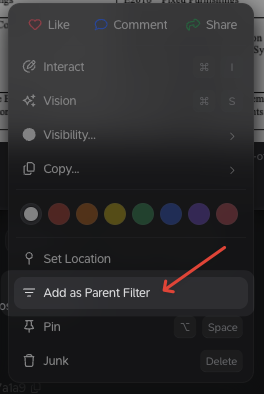
There may be more but these two I know of: Filter by Parent Card and Filter by Backlinked To:
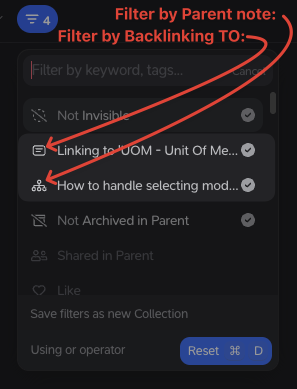
- Filter by Parent Card
- I believe this filter is only accessible via the “context menu” when clicked on either the preview note or in outline.
- this is one i’d love to have easier access to, since it’s like filtering by a tag, but it also has the heirarchy information. Then i could organize my meetings better like so ( “>” representing depth of parent/child relationship): “Meetings” > “Work Meetings”, “Personal Meetings” > “Daily Standup Meetings”, “Demo Meetings”, “1:1 Meetings”, “Product Discovery Meetings” etc.
- This would enable me to be able to:
- When creating a new meeting (as the meeting starts) 1. Search “Daily Standup Meetings” card and open it. 2. create the new note for the meeting as a child, which would automatically have the parent note (specific meeting category) set properly. 3. Not have to add multiple tags from memory at the start of my meeting (#meeting #daily-standup #work)
- After I’ve gotten lots of meetings created, it would give me the option to see all my notes under each parent group by setting the view depth setting. Ie. All Meetings, All work notes, All “Daily Standup Notes”. I know I can achieve this via tag filters - I just am struggling with remembering the specific tags to add for meetings and making sure i don’t have any “stranded” meetings notes that i missed categorizing a specific way to get that information. Having a pre-set hierarchical structure of my meeting notes in advance saves that problem.
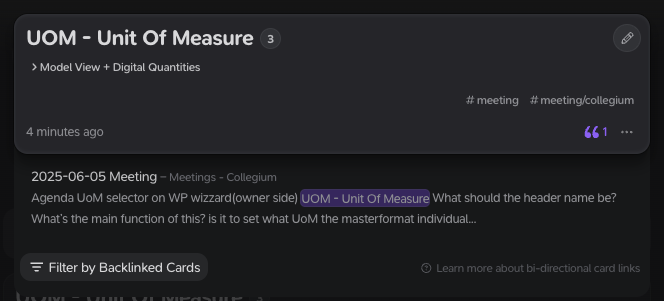
- Filter by Backlinked To:
- This one is also hidden, only accessible (to the best of my knowledge) by viewing a specific note that already has a backlink and that’s even hidden behind the dropdown “backlinks” button that needs to be clicked to see in the first place.
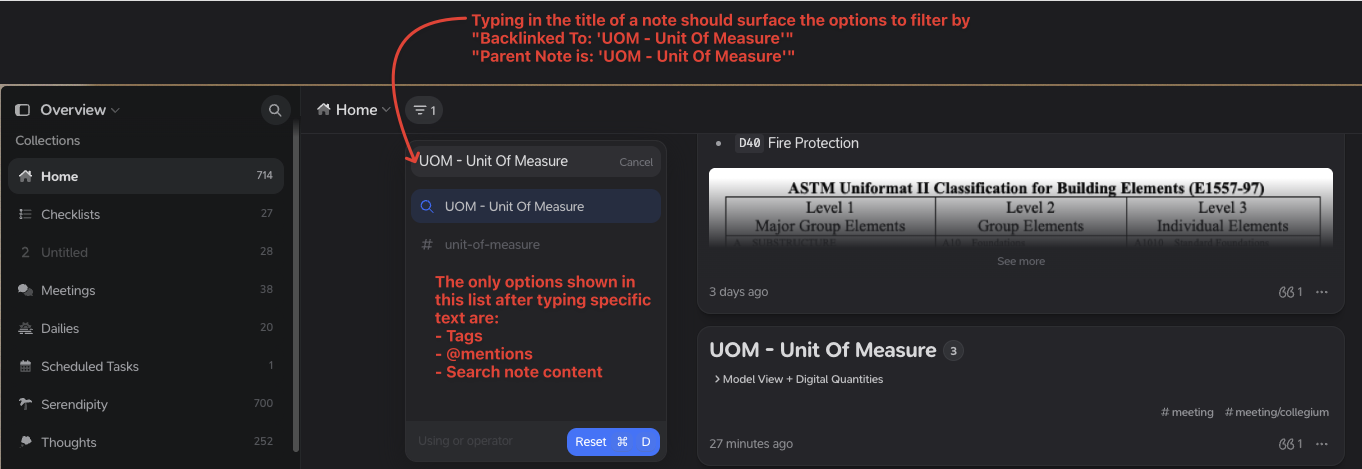
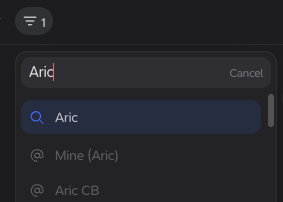
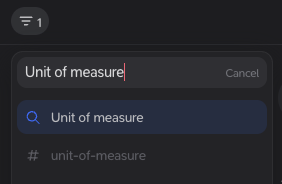
The only options shown in the Filter Dropdown after typing specific text are:
- Tags
- @mentions
- Search note content